Search This Blog

Showing posts with label powershell. Show all posts

Friday, March 27, 2015

Exchange Inventory Powershell Script

Not SCOM related, but I cobbled together a powershell script that gives useful information for your exchange inventory. In particular, I was looking to re-balance my exchange databases and wanted to get the particulars of all my user mailboxes. I find that using using the alias when running some of the move commands is easier. The script will provide you with the following information:
  • Users's display name
  • Total size of the user's mailbox
  • The primary SMTP address for the user
  • The user's alias
  • The database on which the mailbox is located
By tweaking fields in the PSObject section, you can display or remove additional information, so long as that information is part of one of the other calls, like get-recipient or get-mailboxstatistics. As an example, the original script I found did not pull the database information, so I added that field in.

$(Foreach ($mailbox in Get-recipient -ResultSize Unlimited -RecipientType UserMailbox){
$Stat = $mailbox | Get-MailboxStatistics | Select TotalItemSize,ItemCount
                New-Object PSObject -Property @{
                DisplayName = $mailbox.DisplayName
                TotalItemSize = $Stat.TotalItemSize
                PrimarySmtpAddress = $mailbox.PrimarySmtpAddress
                Alias = $mailbox.Alias
                Database = $mailbox.Database}
}) | Select DisplayName,TotalItemSize,PrimarySmtpAddress,Alias,Database

Friday, November 15, 2013

SCOM 2012 Powershell - Retrieving a List of Computers in a Group

Had to search for a batch file that is on one of the many SQL servers we have in the environment. First inclination was, let me pull the systems from SCOM since it has all our SQL servers.

Poked around the interwebs a while and noticed a lot of scripts had references to 2007 commands that hadn't been updated to 2012. Here's the basic steps taken to get my group of SQL servers. You could perform the same task on pretty much any group in the same manner.

  • Open the Operations Manager Shell powershell console

Image illustratin the correct System Center 2012 Operations Manager Shell to open for running the powershell commands
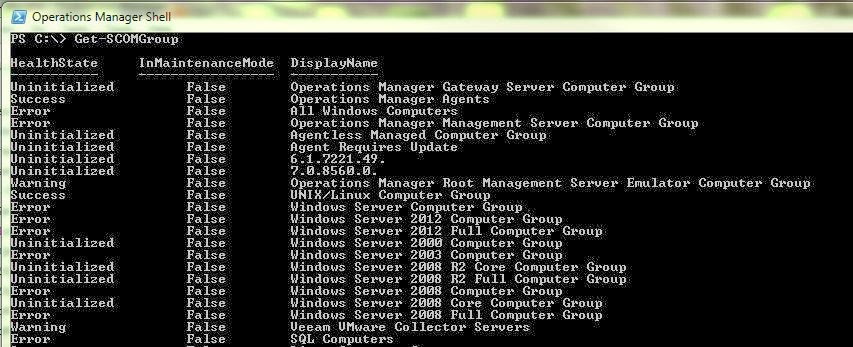
  • Type in : Get-SCOMGroup
Image shows the sample output of running the SCOM 2012 Get-SCOMGroup command in powershell
  • Search for the group you want to retrieve members from
  • Now type in: $Group = Get-SCOMGroup |  where {$_.DisplayName -eq "SQL Computers"} (or insert the group your looking for instead of SQL Computers")
Image illustrates running the Get-SCOMGroup command with a filter for a specific group and assigning to a variable

  • Next, type in: $Members = $Group.GetRelatedMonitoringObjects()
 
Illustrates the use of the command GetRelatedMonitoringObjects() for retriving a list of group members and assigning them to a variable

  • Now, you can simply type: $Members
 
Illustrates the output of members captured in the previous step using GetRelatedMonitoringObject(). Should show three headings and then the server members from the group

  • Or, pipe the command out to a file: $Members | Sort DisplayName | FT DisplayName | out-file C:\Scripts\Servers.txt
 
Illustrates running the following command in powershell to pipe a variable out to a file: $Members | Sort DisplayName | FT DisplayName | out-file C:\Scripts\Servers.txt


Monday, March 26, 2012

Powershell script to stop system maintenance mode

In the event you want to pull the computer out of maintenance mode for some reason, here is the script for ending the maintenance mode. The command line prompts could be hard coded as variables or you could add a $params statement to the front of the script to feed in a variable.


$RMSFQDN = Read-Host "Enter the FQDN of your management server"

$Name = "Microsoft.EnterpriseManagement.OperationsManager.Client"

$ModuleLoaded = Get-Pssnapin $Name -ErrorAction SilentlyContinue

If (-not $ModuleLoaded)
{
add-pssnapin "Microsoft.EnterpriseManagement.OperationsManager.Client";
}

New-ManagementGroupConnection -ConnectionString $RMSFQDN
Set-Location "OperationsManagerMonitoring::";

$computerClass = get-monitoringclass -name:Microsoft.SystemCenter.ManagedComputer
$computerPrincipalName = Read-Host "Enter the FQDN computer name for ending maintenance:"
$computerCriteria = "PrincipalName='" + $computerPrincipalName + "'"
$computer = get-monitoringobject -monitoringclass:$computerClass -criteria:$computerCriteria


if($computer -eq $null)
{
$unixClass = get-monitoringclass -name "Microsoft.Unix.Computer"
$monObject = Get-MonitoringObject -monitoringclass:$unixClass
$computer = $monObject | where {$_.displayname -eq $computerPrincipalName}
}
ELSE
{
$computerClass = get-monitoringclass -name:Microsoft.Windows.Computer
$computer = get-monitoringobject -monitoringclass:$computerClass -criteria:$computerCriteria
}


if($computer.InMaintenanceMode -eq $true)
{
"Stopping maintenance mode for: " + $computerPrincipalName
$computer.StopMaintenanceMode([DateTime]::Now.ToUniversalTime(),[Microsoft.EnterpriseManagement.Common.TraversalDepth]::Recursive);
}
ELSE
{
"The computer " + $computerPrincipalName + " is not in maintenance mode."
}

Thursday, March 22, 2012

Comprehensive Powershell Script for System Maintenance Mode

The script I posted yesterday was a quick and dirty script to put a windows host into maintenance mode. Problem is, that script doesn't work on agentless systems or Linux/Unix, so I took care of that. The following script will work for windows hosts, agentless hosts and linux/unix. The caveat is you have to enter the fully qualified domain name of the host. Alternatively, you could alter the script to append your DNS suffix to the host name to save some key strokes. Enjoy!


$RMSFQDN = Read-Host "Enter the FQDN of your Management Server"
$Name = "Microsoft.EnterpriseManagement.OperationsManager.Client"

$ModuleLoaded = Get-Pssnapin $Name -ErrorAction SilentlyContinue

If (-not $ModuleLoaded)
{
add-pssnapin "Microsoft.EnterpriseManagement.OperationsManager.Client";
}

New-ManagementGroupConnection -ConnectionString $RMSFQDN
Set-Location "OperationsManagerMonitoring::";

$startTime = [System.DateTime]::Now
$Hours = Read-Host "Enter the number of hours to put into maintenance:"
$endTime = $startTime.AddHours($Hours)
$comment = "Computer Maintenance"


$computerClass = get-monitoringclass -name:Microsoft.SystemCenter.ManagedComputer
$computerPrincipalName = Read-Host "Enter the FQDN computer name"
$computerCriteria = "PrincipalName='" + $computerPrincipalName + "'"
$computer = get-monitoringobject -monitoringclass:$computerClass -criteria:$computerCriteria


if($computer -eq $null)
{
$unixClass = get-monitoringclass -name "Microsoft.Unix.Computer"
$monObject = Get-MonitoringObject -monitoringclass:$unixClass
$computer = $monObject | where {$_.displayname -eq $computerPrincipalName}
}
ELSE
{
$computerClass = get-monitoringclass -name:Microsoft.Windows.Computer
$computer = get-monitoringobject -monitoringclass:$computerClass -criteria:$computerCriteria
}

if($computer.InMaintenanceMode -eq $false)
{
"Putting " + $computerPrincipalName + " into maintenance mode"
New-MaintenanceWindow -startTime:$startTime -endTime:$endTime -comment:$comment -monitoringObject:$computer
}

Wednesday, March 21, 2012

Scripting the Maintenance Window for a System through Powershell

Enclosed is a powershell script I put together from a number of examples out there. I ran into some overly complex scripts or ones that didn't quite work right when trying to find something quick and easy to use.

Ultimately, in our environment, I hard coded many of the variables to make the process quick and easy (Basically everything but the computer name). For the purposes of this script, it prompts for everything but the time window. I have removed the comments for the time being until I can get it to show up nicely in the blog.


$RMSFQDN = Read-Host "Please enter the FQDN of your management server:"
add-pssnapin "Microsoft.EnterpriseManagement.OperationsManager.Client";
New-ManagementGroupConnection -ConnectionString $RMSFQDN
Set-Location "OperationsManagerMonitoring::";

$startTime = [System.DateTime]::Now

$Hours = 1

$endTime = $startTime.AddHours($Hours)

$strComputerName = Read-Host "Enter the computer name to be put into maintenance mode:"

$objComputer = Get-Agent | Where-Object {$_.Name -match $strComputerName}

$comment = Read-host "Please provide a comment for putting the system in maintenance mode:"

$objComputer.HostComputer | New-MaintenanceWindow -StartTime:$startTime -EndTime:$endTime -Comment:$Comment

Thursday, January 12, 2012

Removing SCOM 2012 Management Packs Through Powershell

I got a little overzealous in importing management packs and found myself with a number of management packs that I did not want in my library. Going through one by one and selecting delete from the management window was going to be a nightmare. Enclosed is a powershell script I found and used to remove the various packs I imported. In this case, the management packs had country code extensions, such as .RUS or .KOR, that I didn't need for my installation. I will say, while this reduces the manual nightmare, the process takes exceptionally long, especially when using multiple search strings.

http://technet.microsoft.com/en-us/library/hh545200.aspx

Get-SCManagementPack ?{ $_.name -match ".RUS" } Remove-SCOMManagementPack


In some cases, you might want to delete multiple types of management packs. I've included an example of one using the "logical or" operation.


Get-SCManagementPack ?{ $_.name -match ".CHT" -or ".JPN" } Remove-SCOMManagementPack