Had a 2012 Server that was being monitoring by System Center lock up on us today. Suspect a WMI leak. Hotfix deployment, engage!
http://support.microsoft.com/kb/2790831/en-us
Thursday, November 21, 2013

Friday, November 15, 2013
SCOM 2012 Powershell - Retrieving a List of Computers in a Group
Had to search for a batch file that is on one of the many SQL servers we have in the environment. First inclination was, let me pull the systems from SCOM since it has all our SQL servers.
Poked around the interwebs a while and noticed a lot of scripts had references to 2007 commands that hadn't been updated to 2012. Here's the basic steps taken to get my group of SQL servers. You could perform the same task on pretty much any group in the same manner.


Poked around the interwebs a while and noticed a lot of scripts had references to 2007 commands that hadn't been updated to 2012. Here's the basic steps taken to get my group of SQL servers. You could perform the same task on pretty much any group in the same manner.
- Open the Operations Manager Shell powershell console
- Type in : Get-SCOMGroup
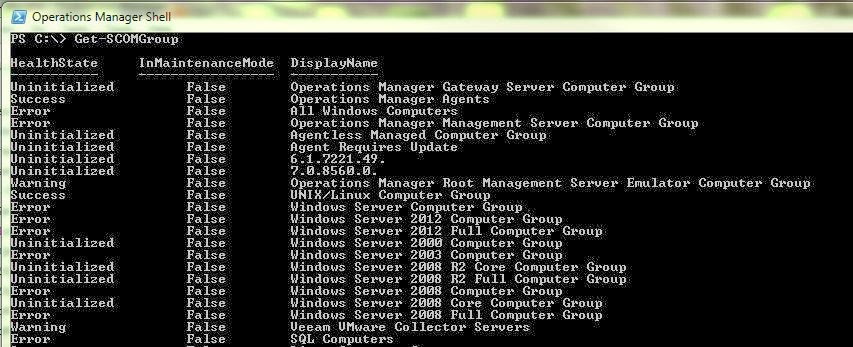
- Search for the group you want to retrieve members from
- Now type in: $Group = Get-SCOMGroup | where {$_.DisplayName -eq "SQL Computers"} (or insert the group your looking for instead of SQL Computers")

- Next, type in: $Members = $Group.GetRelatedMonitoringObjects()

- Now, you can simply type: $Members

- Or, pipe the command out to a file: $Members | Sort DisplayName | FT DisplayName | out-file C:\Scripts\Servers.txt

Thursday, October 31, 2013
Automated Discovery and Troubleshooting of Gray State Systems in System Center 2012 (Part-1)
Recently come across a rash of clients and internal systems at the office where monitored devices, for whatever reason, have gone into a gray state. I needed a way to quickly discover these systems, and ideally, run a script that would take some basic actions to remediate or troubleshoot these agents. In this first post, I'll give the full code necessary to get the gray agent discovery running. In the second post, I'll give a powershell script that detects the grayed out agents, shuts down the HealthService, clears the agent health directory, and then turns the HealthService back on automatically.
I came across three lines of code in the following blog, which got me pointed in the right direction. However, the code did not work correctly as provided.
http://www.bictt.com/blogs/bictt.php/2011/05/27/scom-trick-14-troubleshoot-grey
$WCC = get-monitoringclass -name "Microsoft.SystemCenter.Agent"
$MO = Get-MonitoringObject -monitoringclass:$WCC | where {$_.IsAvailable -eq $false}
$MO | select DisplayName
With just that code, I would receive the following error screen:
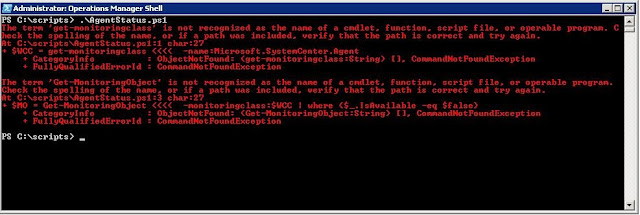
If you update the code to include the following path and connection to your system center server, the code will function properly. Running this should spit out a list of computers with a gray state in the agent status. This code should all be included in your powershell script:
$RMSFQDN = "<your SCOM managment server FQDN>"
$Name = "Microsoft.EnterpriseManagement.OperationsManager.Client"
$ModuleLoaded = Get-Pssnapin $Name -ErrorAction SilentlyContinue
If (-not $ModuleLoaded)
{
add-pssnapin "Microsoft.EnterpriseManagement.OperationsManager.Client";
}
New-ManagementGroupConnection -ConnectionString $RMSFQDN
Set-Location "OperationsManagerMonitoring::";
$AgentClass = get-monitoringclass -name:Microsoft.SystemCenter.Agent
$MO = Get-MonitoringObject -monitoringclass:$AgentClass | where {$_.IsAvailable -eq $false}
$MO | select DisplayName
Also, review this link for a comprehensive list of WMI hotfixes for various platforms:
http://support.microsoft.com/kb/2591403
Updated 11-15-2013: Review this link for agent based system hotfixes: http://support.microsoft.com/kb/2843219
I came across three lines of code in the following blog, which got me pointed in the right direction. However, the code did not work correctly as provided.
http://www.bictt.com/blogs/bictt.php/2011/05/27/scom-trick-14-troubleshoot-grey
$WCC = get-monitoringclass -name "Microsoft.SystemCenter.Agent"
$MO = Get-MonitoringObject -monitoringclass:$WCC | where {$_.IsAvailable -eq $false}
$MO | select DisplayName
With just that code, I would receive the following error screen:

If you update the code to include the following path and connection to your system center server, the code will function properly. Running this should spit out a list of computers with a gray state in the agent status. This code should all be included in your powershell script:
$RMSFQDN = "<your SCOM managment server FQDN>"
$Name = "Microsoft.EnterpriseManagement.OperationsManager.Client"
$ModuleLoaded = Get-Pssnapin $Name -ErrorAction SilentlyContinue
If (-not $ModuleLoaded)
{
add-pssnapin "Microsoft.EnterpriseManagement.OperationsManager.Client";
}
New-ManagementGroupConnection -ConnectionString $RMSFQDN
Set-Location "OperationsManagerMonitoring::";
$AgentClass = get-monitoringclass -name:Microsoft.SystemCenter.Agent
$MO = Get-MonitoringObject -monitoringclass:$AgentClass | where {$_.IsAvailable -eq $false}
$MO | select DisplayName
Also, review this link for a comprehensive list of WMI hotfixes for various platforms:
http://support.microsoft.com/kb/2591403
Updated 11-15-2013: Review this link for agent based system hotfixes: http://support.microsoft.com/kb/2843219
Friday, June 14, 2013
Scripting the Deployment of the Action Account to servers
If you have a large server list and you quickly want to add rights for your action account, check out this helpful method. Just go to active directory and create a query for your servers, then remove the columns (outside of the server names). I've enclosed the query definition. Drop this into an xml file and import into Active Directory, under "Saved Queries".
<QUERY><NAME>Servers</NAME><DESCRIPTION></DESCRIPTION><DN></DN><FILTERLASTLOGON>-1</FILTERLASTLOGON><LDAPQUERY>(&(&(sAMAccountType=805306369)(objectCategory=computer)(objectClass=computer)(operatingSystem=Windows\20Server*)))</LDAPQUERY><ONELEVEL>FALSE</ONELEVEL><COLUMNID>{5AAC0BFD-BFA4-44BB-95A9-EF6CCC1F64EF}</COLUMNID></QUERY>
Here is the link to the site:
http://www.bluemoonpcrepair.com/wp/?p=145
<QUERY><NAME>Servers</NAME><DESCRIPTION></DESCRIPTION><DN></DN><FILTERLASTLOGON>-1</FILTERLASTLOGON><LDAPQUERY>(&(&(sAMAccountType=805306369)(objectCategory=computer)(objectClass=computer)(operatingSystem=Windows\20Server*)))</LDAPQUERY><ONELEVEL>FALSE</ONELEVEL><COLUMNID>{5AAC0BFD-BFA4-44BB-95A9-EF6CCC1F64EF}</COLUMNID></QUERY>
Here is the link to the site:
http://www.bluemoonpcrepair.com/wp/?p=145
Thursday, May 2, 2013
Where Did My LINUX RPMs Go?! @##%&&%
Some time ago, I created a video and wrote a blog on a quick and painless way to install the LINUX agents for SCOM. Well, came time to do that again and I noticed, even after downloading the management packs from the catalog, I could not find the rpm files!
After some exasperating searching and much gnashing of the teeth, I finally found the download for the updated management packs. Installing the ones from this pack will give you the rpms. In the past, the rpms could be found on the CD/DVD.
System Center 2012 Monitoring Pack for UNIX and Linux Operating Systems :
http://www.microsoft.com/en-us/download/details.aspx?id=29696
After some exasperating searching and much gnashing of the teeth, I finally found the download for the updated management packs. Installing the ones from this pack will give you the rpms. In the past, the rpms could be found on the CD/DVD.
System Center 2012 Monitoring Pack for UNIX and Linux Operating Systems :
http://www.microsoft.com/en-us/download/details.aspx?id=29696
Monday, March 11, 2013
Upcoming topics on SCOM
Haven't had a chance to post anything recently, but it's not for a lack of trying. I have 41 pages of screen shots and instructions that walk folks through the SNMP troubleshooting, from creating the LINUX test system through to getting the alerts in SCOM, trying to walk through where your SNMP setup could be failing. Also going to post pulling raw metrics for analysis in Excel. SQL Reporting is nice, but it can be overly complicated when sometimes, you just want some quick data and some graphs. Finally, will be posting another method for organizing data outside of the datawarehouse. This will provide a safer method of writing your own reports and views without disturbing the installation.
Friday, February 15, 2013
System Center Installer - OMServer.msi returned error 1603
Having problems installing your secondary management server, maybe even your primary? Great post about pre-requisites. Setting up our secondary server, the management server installer was failing. I had made sure to install the report viewer modules, .NET 4.0 but forgot .NET 3.51. The installer won't tell you directly that the prerequisite was missing and will simply fail, leaving you to pour through a large install log to find the problem.
If you're seeing this in your install log, it may be the same case:
Always: :LaunchMSI: Setting rollback to true
[16:58:55]: Error: :LaunchMSI: MSI C:\SCOMSP1\Setup\AMD64\Server\OMServer.msi returned error 1603
Check Christopher Keyaert's article for additional information and other troubleshooting steps.
http://www.vnext.be/2013/01/24/scom-2012-sp1-omserver-msi-returned-error-1603/
If you're seeing this in your install log, it may be the same case:
Always: :LaunchMSI: Setting rollback to true
[16:58:55]: Error: :LaunchMSI: MSI C:\SCOMSP1\Setup\AMD64\Server\OMServer.msi returned error 1603
Check Christopher Keyaert's article for additional information and other troubleshooting steps.
http://www.vnext.be/2013/01/24/scom-2012-sp1-omserver-msi-returned-error-1603/
Subscribe to:
Posts (Atom)