I have a number of sites still running Exchange 2010 and because of the buggy management pack there is often not a way to alert on the drive space of an exchange server mount point because sites have removed the management pack.
In searching for a solution, I came across a nice article that helped get me started here:
http://www.powershellneedfulthings.com/?p=36
I took that script and added some additional information so that I could generate both an error condition on low drive space as well as a recovery alert so SCOM knew when to close the alert itself.
In order for this script to run cleanly, you first need to run the following powershell command on any server you want to run mout-point checks on:
new-eventlog
-LogName System -Source OpsHealthScript
Next, schedule the following script to run periodically on your server via task scheduler or whatever program you might use to run scripts on a recurring basis.
$TotalGB = @{Name="Capacity(GB)";expression={[math]::round(($_.Capacity/ 1073741824),2)}}
$FreeGB = @{Name="FreeSpace(GB)";expression={[math]::round(($_.FreeSpace / 1073741824),2)}}
$FreePerc = @{Name="Free(%)";expression={[math]::round(((($_.FreeSpace / 1073741824)/($_.Capacity / 1073741824)) * 100),0)}}
$Check = @{Name="Failed";expression={[math]::round(((($_.FreeSpace / 1073741824)/($_.Capacity / 1073741824)) * 100),0) -lt 10}}
function get-mountpoints {
$global:volumes = Get-WmiObject -computer $server win32_volume | Where-object {$_.DriveLetter -eq $null}
$global:volumes | Select SystemName, Label, Capacity, FreeSpace, $Check | Format-Table -AutoSize
}
$servers = [system.environment]::MachineName
foreach ($server in $servers){
get-mountpoints
}
$Flag = $global:volumes | Select $Check
If ($Flag -match "True") {
Write-EventLog -logname System -source OpsHealthScript -eventID 500 -Entrytype Error -message 'One or more Exchange mount points are below 10% free space.'
}
Else {
Write-EventLog -logname System -source OpsHealthScript -eventID 800 -Entrytype Information -message 'Exchange mount points are healthy.'
}
You can access the file here: mount-point-space.ps1
Once this is scheduled, you can setup alerting in a couple of ways, one is a simple alert detection within SCOM to detect Error 500 in the system event log, the other is a correlated alert detection so that each alert generated by the script does not create a new alert within SCOM. I'll go over that in additional detail.
Showing posts with label "System Center". Show all posts
Showing posts with label "System Center". Show all posts
Thursday, July 30, 2015

Thursday, January 8, 2015
Operations Manager Performance Trending with Excel - No SQL Required
A powerful tool for administrators is to trend data to troubleshoot performance problems and forecast future resource needs. In the past, I've run SQL queries but needed a way to instruct support staff on a basic means to accomplish the same tasks right from the console. Thankfully, Operations Manager and Excel allow just that.
Let's get started.
Fire up the Operations Manager Console to the Monitoring section, then open the Windows Computers view (or any section where you access the computer health view, such as SQL)

Find a server you're interested in or simply select one from the list.
 After selecting the system, select the Performance View under the Navigation pane of the task panel on the right side of the management console.
 Once the Performance View window comes up, in the Performance Actions pane on the right side of the console, change your time frame via Select Time Range, selecting a meaningful period, such as two weeks or longer.

 Now at the bottom of the performance monitor screen, select a counter you're interested. I'll use Percent Memory Used for this example.

When selected, a graph should display such as the following:
 Going back to the Performance Actions pane, select Copy Data to Clipboard
Open up notepad and past the contents, which should look similar to the following:

Save the file with an xml extension

 Now open Excel, select the Data tab and select From Other Sources -> From XML Data Import

Select the XML file created earlier; accept the import defaults when prompted

This should populate the Excel spreadsheet with an X and Y column. The first column is the date/time stamp and the Y column is the performance data.
 Select all of the Y data and with it highlighted, select the Insert tab -> Line -> 2-D Line to generate a graph.

This should yield a graph in Excel such as the following:

Right-click on the graph line and select Add Trendline

Generally, accepting the default will paint a trendline that is helpful for finding issues such as a memory leak or consistent data usage on a hard drive. However, you can play around with the trend to perform longer-term forecasts. I added 50 periods to the end of my trend line to see how memory might look in the future after my data set.
 Graph results with the trendline:
 The line extends a bit beyond the graph data and shows an overall flat trend on memory utilization. If the server had a memory leak, as an example, the graph might trend steadily upwards like this:
 There you have it, a simple but powerful tool for analyzing data recorded in SCOM without a lot of effort.
Let's get started.
Fire up the Operations Manager Console to the Monitoring section, then open the Windows Computers view (or any section where you access the computer health view, such as SQL)
Find a server you're interested in or simply select one from the list.
When selected, a graph should display such as the following:
Open up notepad and past the contents, which should look similar to the following:
Save the file with an xml extension
Select the XML file created earlier; accept the import defaults when prompted
This should populate the Excel spreadsheet with an X and Y column. The first column is the date/time stamp and the Y column is the performance data.
This should yield a graph in Excel such as the following:
Right-click on the graph line and select Add Trendline
Generally, accepting the default will paint a trendline that is helpful for finding issues such as a memory leak or consistent data usage on a hard drive. However, you can play around with the trend to perform longer-term forecasts. I added 50 periods to the end of my trend line to see how memory might look in the future after my data set.
Friday, February 7, 2014
SCOM 2012 Failed Accessing Windows Event Log with Veeam Management Pack
Noticed during a routine health check that our two Management Servers were showing a warning state. Error read as "Failed Access Windows Event Log" <management server 1> (Health Service).
Error details show the following:
The Windows Event Log Provider is still unable to open the Veeam Collector event log on computer 'management server 1'. The Provider has been unable to open the Veeam Collector event log for 720 seconds. Most recent error details: The specified channel could not be found. Check channel configuration. One or more workflows were affected by this. Workflow name: many Instance name: many Instance ID: many Management group:
We have the Veeam management pack for SCOM loaded and sure enough, this appears to be a documented issue on the Veeam knowledge base.
http://www.veeam.com/kb1496#/kb1496
Error details show the following:
The Windows Event Log Provider is still unable to open the Veeam Collector event log on computer 'management server 1'. The Provider has been unable to open the Veeam Collector event log for 720 seconds. Most recent error details: The specified channel could not be found. Check channel configuration. One or more workflows were affected by this. Workflow name: many Instance name: many Instance ID: many Management group:
We have the Veeam management pack for SCOM loaded and sure enough, this appears to be a documented issue on the Veeam knowledge base.
http://www.veeam.com/kb1496#/kb1496
Friday, November 15, 2013
SCOM 2012 Powershell - Retrieving a List of Computers in a Group
Had to search for a batch file that is on one of the many SQL servers we have in the environment. First inclination was, let me pull the systems from SCOM since it has all our SQL servers.
Poked around the interwebs a while and noticed a lot of scripts had references to 2007 commands that hadn't been updated to 2012. Here's the basic steps taken to get my group of SQL servers. You could perform the same task on pretty much any group in the same manner.


Poked around the interwebs a while and noticed a lot of scripts had references to 2007 commands that hadn't been updated to 2012. Here's the basic steps taken to get my group of SQL servers. You could perform the same task on pretty much any group in the same manner.
- Open the Operations Manager Shell powershell console
- Type in : Get-SCOMGroup
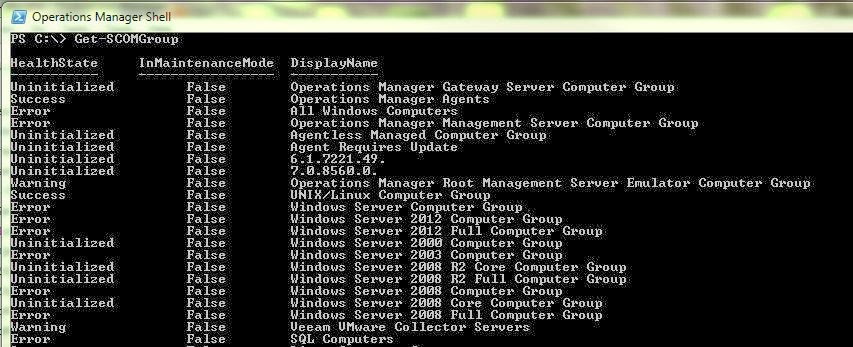
- Search for the group you want to retrieve members from
- Now type in: $Group = Get-SCOMGroup | where {$_.DisplayName -eq "SQL Computers"} (or insert the group your looking for instead of SQL Computers")

- Next, type in: $Members = $Group.GetRelatedMonitoringObjects()

- Now, you can simply type: $Members

- Or, pipe the command out to a file: $Members | Sort DisplayName | FT DisplayName | out-file C:\Scripts\Servers.txt

Thursday, March 22, 2012
Comprehensive Powershell Script for System Maintenance Mode
The script I posted yesterday was a quick and dirty script to put a windows host into maintenance mode. Problem is, that script doesn't work on agentless systems or Linux/Unix, so I took care of that. The following script will work for windows hosts, agentless hosts and linux/unix. The caveat is you have to enter the fully qualified domain name of the host. Alternatively, you could alter the script to append your DNS suffix to the host name to save some key strokes. Enjoy!
$RMSFQDN = Read-Host "Enter the FQDN of your Management Server"
$Name = "Microsoft.EnterpriseManagement.OperationsManager.Client"
$ModuleLoaded = Get-Pssnapin $Name -ErrorAction SilentlyContinue
If (-not $ModuleLoaded)
{
add-pssnapin "Microsoft.EnterpriseManagement.OperationsManager.Client";
}
New-ManagementGroupConnection -ConnectionString $RMSFQDN
Set-Location "OperationsManagerMonitoring::";
$startTime = [System.DateTime]::Now
$Hours = Read-Host "Enter the number of hours to put into maintenance:"
$endTime = $startTime.AddHours($Hours)
$comment = "Computer Maintenance"
$computerClass = get-monitoringclass -name:Microsoft.SystemCenter.ManagedComputer
$computerPrincipalName = Read-Host "Enter the FQDN computer name"
$computerCriteria = "PrincipalName='" + $computerPrincipalName + "'"
$computer = get-monitoringobject -monitoringclass:$computerClass -criteria:$computerCriteria
if($computer -eq $null)
{
$unixClass = get-monitoringclass -name "Microsoft.Unix.Computer"
$monObject = Get-MonitoringObject -monitoringclass:$unixClass
$computer = $monObject | where {$_.displayname -eq $computerPrincipalName}
}
ELSE
{
$computerClass = get-monitoringclass -name:Microsoft.Windows.Computer
$computer = get-monitoringobject -monitoringclass:$computerClass -criteria:$computerCriteria
}
if($computer.InMaintenanceMode -eq $false)
{
"Putting " + $computerPrincipalName + " into maintenance mode"
New-MaintenanceWindow -startTime:$startTime -endTime:$endTime -comment:$comment -monitoringObject:$computer
}
$RMSFQDN = Read-Host "Enter the FQDN of your Management Server"
$Name = "Microsoft.EnterpriseManagement.OperationsManager.Client"
$ModuleLoaded = Get-Pssnapin $Name -ErrorAction SilentlyContinue
If (-not $ModuleLoaded)
{
add-pssnapin "Microsoft.EnterpriseManagement.OperationsManager.Client";
}
New-ManagementGroupConnection -ConnectionString $RMSFQDN
Set-Location "OperationsManagerMonitoring::";
$startTime = [System.DateTime]::Now
$Hours = Read-Host "Enter the number of hours to put into maintenance:"
$endTime = $startTime.AddHours($Hours)
$comment = "Computer Maintenance"
$computerClass = get-monitoringclass -name:Microsoft.SystemCenter.ManagedComputer
$computerPrincipalName = Read-Host "Enter the FQDN computer name"
$computerCriteria = "PrincipalName='" + $computerPrincipalName + "'"
$computer = get-monitoringobject -monitoringclass:$computerClass -criteria:$computerCriteria
if($computer -eq $null)
{
$unixClass = get-monitoringclass -name "Microsoft.Unix.Computer"
$monObject = Get-MonitoringObject -monitoringclass:$unixClass
$computer = $monObject | where {$_.displayname -eq $computerPrincipalName}
}
ELSE
{
$computerClass = get-monitoringclass -name:Microsoft.Windows.Computer
$computer = get-monitoringobject -monitoringclass:$computerClass -criteria:$computerCriteria
}
if($computer.InMaintenanceMode -eq $false)
{
"Putting " + $computerPrincipalName + " into maintenance mode"
New-MaintenanceWindow -startTime:$startTime -endTime:$endTime -comment:$comment -monitoringObject:$computer
}
Wednesday, March 21, 2012
Scripting the Maintenance Window for a System through Powershell
Enclosed is a powershell script I put together from a number of examples out there. I ran into some overly complex scripts or ones that didn't quite work right when trying to find something quick and easy to use.
Ultimately, in our environment, I hard coded many of the variables to make the process quick and easy (Basically everything but the computer name). For the purposes of this script, it prompts for everything but the time window. I have removed the comments for the time being until I can get it to show up nicely in the blog.
$RMSFQDN = Read-Host "Please enter the FQDN of your management server:"
add-pssnapin "Microsoft.EnterpriseManagement.OperationsManager.Client";
New-ManagementGroupConnection -ConnectionString $RMSFQDN
Set-Location "OperationsManagerMonitoring::";
$startTime = [System.DateTime]::Now
$Hours = 1
$endTime = $startTime.AddHours($Hours)
$strComputerName = Read-Host "Enter the computer name to be put into maintenance mode:"
$objComputer = Get-Agent | Where-Object {$_.Name -match $strComputerName}
$comment = Read-host "Please provide a comment for putting the system in maintenance mode:"
$objComputer.HostComputer | New-MaintenanceWindow -StartTime:$startTime -EndTime:$endTime -Comment:$Comment
Ultimately, in our environment, I hard coded many of the variables to make the process quick and easy (Basically everything but the computer name). For the purposes of this script, it prompts for everything but the time window. I have removed the comments for the time being until I can get it to show up nicely in the blog.
$RMSFQDN = Read-Host "Please enter the FQDN of your management server:"
add-pssnapin "Microsoft.EnterpriseManagement.OperationsManager.Client";
New-ManagementGroupConnection -ConnectionString $RMSFQDN
Set-Location "OperationsManagerMonitoring::";
$startTime = [System.DateTime]::Now
$Hours = 1
$endTime = $startTime.AddHours($Hours)
$strComputerName = Read-Host "Enter the computer name to be put into maintenance mode:"
$objComputer = Get-Agent | Where-Object {$_.Name -match $strComputerName}
$comment = Read-host "Please provide a comment for putting the system in maintenance mode:"
$objComputer.HostComputer | New-MaintenanceWindow -StartTime:$startTime -EndTime:$endTime -Comment:$Comment
Wednesday, February 22, 2012
Duplicate name on network warning in SCOM
Came across this lovely gem recently. Troubleshooting steps didn't really help, at all.
A duplicate name has been detected on the TCP network. The IP address ofthe machine that sent the message is in the data. Use nbtstat -n in acommand window to see which name is in the Conflict state.
Servers in this case were in the DMZ, weren't in a domain and definitely did not have duplicate names. They did have multiple network adapters, but that shouldn't have caused the issue. Finally realized, the systems had been converted (PtoV) into our virtual enviornment from physical.
Dropped to a command prompt and ran "set devmgr_show_nonpresent_devices=1" to ensure device manager would show all hidden devices. From there, I ran devmgmt.msc to open device manager and then from the toolbar, I selected the "Show hidden devices" option. Going through, the old network adapters were still in there. After removing the adapters and rebooting, the warning did not come back.
http://support.microsoft.com/kb/315539 explains how to show hidden devices in windows.
A duplicate name has been detected on the TCP network. The IP address ofthe machine that sent the message is in the data. Use nbtstat -n in acommand window to see which name is in the Conflict state.
Servers in this case were in the DMZ, weren't in a domain and definitely did not have duplicate names. They did have multiple network adapters, but that shouldn't have caused the issue. Finally realized, the systems had been converted (PtoV) into our virtual enviornment from physical.
Dropped to a command prompt and ran "set devmgr_show_nonpresent_devices=1" to ensure device manager would show all hidden devices. From there, I ran devmgmt.msc to open device manager and then from the toolbar, I selected the "Show hidden devices" option. Going through, the old network adapters were still in there. After removing the adapters and rebooting, the warning did not come back.
http://support.microsoft.com/kb/315539 explains how to show hidden devices in windows.
Subscribe to:
Posts (Atom)